Banner
Showing posts with label iPhone 5 tips. Show all posts

Tuesday, March 12, 2013

How to Transfer Apps from iPhone to iPad

Transfer apps from iPhone to iPad

If you own both iPhone and iPad, you will find it difficult to use the iPhone apps directly on iPad. But there are a large amount of universal apps that can be used in iPhone and iPad, and you don't want to purchase same apps again for iPad. Now we will share with you the steps to transfer apps from iPhone to iPad using iTunes.

Tips: In order to save troubles on transferring apps, you had better firstly purchase and download iOS apps on iTunes, then load them to your iPhone and iPad.

Step 1: Connect iPhone to PC via USB cable, and iTunes will automatically run and detect your iPhone.

Step 2: Sync iPhone apps. Click on your iPhone name appearing under "Devices", then click the "Sync" button in the lower-right corner. Therefore, all apps from iPhone will be synced to the iTunes application library. Of course, you can also do as follow: click on "File", scroll down to "Sync iPhone".

Step 3: Remove your iPhone from PC, connect iPad onto PC with USB cable, and iTunes will recognize your iPad soon!

Step 4: Double-click on the icon of your iPad, and select "App" tab on the top of the iTunes main interface, and then apps from iTunes library will show up. Just click the check boxes of apps that you wish to transfer to iPad. Click "Apply" and "Sync" on the lower-right corner, then apps from iPhone will be transferred onto iPad!


Note: Those above steps are easy and also suitable for transferring digital content purchased from iTunes. But the downloaded music, video and photos from internet are prohibited to transfer via iTunes, and it is advised to use a third party utility like Leawo iTransfer. Leawo iTransfer allows transferring apps, music, video, photos and eBooks between iPhone, iPad and PC without iTunes.

Transfer apps and other files between iPhone, iPad and PC

Now the following will simply show you how to transfer apps from iPhone to iPad. You also can transfer any media files between iOS devices and PC with similar steps. In addition, make sure that iTunes has been installed on PC for the assistance to Leawo iTransfer!

Step 1: Connection. Run Leawo iTransfer; connect iPhone and iPad to computer with USB cable. The Leawo iTransfer will recognize your iOS devices and show on the left side.

Step 2: Choose target files. Click on the name of your iPhone on the left, and choose "App" or other items. The details from iPhone will show up. Now you can select the apps you want to transfer.

Step 3: Start transferring. Through above selections, now you can transfer those apps to iPad, iTunes and PC fast with three ways.
   
Transfer apps  between iPhone, iPad and PC

1: Directly drag-and-drop the apps from iPhone to iPad; 
2: Right-click those apps to choose "Transfer to" and click "iPad" option;  
3: Click the Transfer button in the lower-right corner and choose "iPad" from "Transfer to list" as the transferring destination in the pop-up window.

 More iOS tips:

How to Transfer Videos and Music from iPhone 5 to Computer
How to Copy Music from iPod to PC for Free 
iPhone 5 Tips: How to Watch DVD on iPhone 5
Best Easter 2013 iPhone and iPad Apps for Kids 


Friday, January 18, 2013

Tips for Playing Flash on iOS 6 - Top Browsers Supporting Flash for iOS 6 Devices

Lots of iPhone and iPad users update iOS 6 for their iOS devices. But when users sometimes want to watch live football games or Flash videos through some websites, they will be rejected and needs to install Adobe Flash Player. As a result, many of them want to know some methods to play Flash on their iPhone 5 and iPad mini without jailbreak!

In this blog, we will suggest some top browsers supporting online Flash content for iOS 6 users and it means that users don't need to install third party Flash Players and download Adobe Flash Player by jailbreak. The following Flash-supported browsers own different advantages and are all available for free and paid versions!

Note: If you want to watch Flash animations offline or share SWF online, just learn more about converting SWF to HD video here!

Puffin
Top Browsers Supporting Flash for iOS 6 Devices -Puffin

Puffin is not only one of fastest mobile browsers but also supports Adobe Flash on iOS 6 devices. It runs based on a massive cloud computing data center. And its remote-browser technology is so amazing that not only does it accelerate page rendering speed but also reduces network data usage. So with Puffin Browser, users will enjoy fast and full web browsing experience like on desktop. Its free version provides two weeks free trial of Adobe Flash support.

iSwifter
Top Browsers Supporting Flash for iOS 6 Devices - iSwifter

If users like to play online Flash games on the website, iSwifter is a perfect choice. It is a powerful games browser and it can bring any game to users on iOS 6 devices such as Social casual, social mid-core, MMOs or simply any game on the web. In addition, powered by the Agawi cloud gaming platform, users can easily get access to lots of games in the Browser, saving troubles to search games!

Skyfire
Top Browsers Supporting Flash for iOS 6 Devices - Skyfire

It also is a great browser and mostly focuses on Flash videos. As the developer says, it is an enhanced version of the native Safari browser and it help users to watch living streaming videos more easily that Safari doesn't support, such as Live news, sports and entertainment streams. And it allow users to personalize and customize with one-click access to the web's most popular social networks, content feeds and utilities, which means that users can access their Facebook and Twitter feed and share directly with friends from an iPad browser.

Photon
Top Browsers Supporting Flash for iOS 6 Devices - Photon

Photon Browser is a powerful new browser with Flash capability designed to enhance your browsing experience on iOS 6 devices. It will help users to get the latest Flash Player and watch Flash videos and play Flash games. Users need to click on the "Lightning Bolt" button to enter streaming mode to view Flash sites. Moreover, depending on network, users can set the bandwidth to enjoy the best Flash experience on their iOS 6 devices!

More tips for iOS:
Top Free Calling iOS Apps to Help You Call for Free with iPhone, iPod touch and iPad
Best iPhone and iPad Apps to Keep Our 2013 New Year's Resolutions
Top Tips for iPhone 5 and iOS 6: Google Map and Battery Life


Tuesday, November 27, 2012

iPhone 5 Tips - How to Transfer Videos and Music from iPhone 5 to Computer

As the latest Apple phone, iPhone 5 features with more updates to improve users experience, such as longer and thinner display, faster wireless, powerful A6 chip and latest iOS 6. However, there is a problem facing iPhone 5 users and so do users of other iOS devices like iPad mini, that is to transfer files between iPhone 5 and PC. You may be allowed to transfer photos, music and movies from PC to iPhone 5 with iTunes. But when you want to transfer those files from your iPhone 5 to computer, then trouble comes, since that you are only allowed to transfer those items purchased from the iTunes Store or photos captured with iPhone 5 camera. In other words, you can’t transfer items downloaded from other resources!

Sometimes you want to transfer some data to computer for backing up or watch or edit videos on computer! So here we will tell you how to transfer videos and music from iPhone 5 to computer, no matter whether them are purchased from iTunes or not!

Method One: Transferring with iTunes and iCloud

This method is for transferring those purchased videos and music from iTunes.

With iTunes

1.   To make sure to authorize your computer before connecting iPhone 5, follow the steps ("Store"menu, choose Authorize Computer and enter Apple ID and password).


2.      Connect your iPhone 5 to the computer.

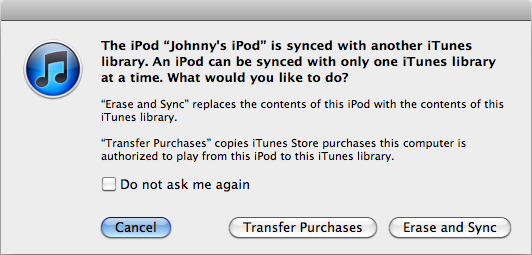
3.       Click the Transfer Purchases button.
You can right-click (Windows or Mac) your device in the iTunes Source list, then choose Transfer Purchases from the shortcut menu that appears.

transfer with iTunes

If you connect your iOS devices for the first time, one dialog may appear automatically as follow , you just click the Transfer Purchases button.

Transfer purchase with iTunes

With iCloud

iCloud is a wonderful service for sharing or backing up your data, so you also can transfer videos and music with it. First of all, you should share your data onto iCloud. Then you need to download from iCloud again to computer. In addition, it requires lots of wireless data to finish the process. So if transferring with iCloud, you have better make sure the Wi-Fi is available for your iPhone 5.


Method Two: Transferring with iTransfer

iTransfer is one third-party application run on Windows PC to transfer data between iOS devices, iTunes and computer. With this professional transferring tool, you don’t need to worry whether your movie and music are purchased from iTunes or not! And it is developed for transferring data between your iPhone 5 and computer with a fast speed and easy steps!

1.       Download and run LeawoiTransfer, then connect your iPhone 5. Your phone will show up in the left list.

2.       Select those videos and music you want to transfer, in "Music" and "Movie" of the library of your iPhone 5.

3.       Directly drag-and-drop those data to your computer or right click and choose "My Computer" in the drop-down menu of "Transfer to", even you can directly click the "Transfer" button to transfer fast.

Leawo iTransfer


What should be mentioned is that the iTransfer takes iOS devices as flash disk, and can read all kinds of data in the devices. As a result, iTransfer can not only transfer videos and music but also all photos and apps from iOS devices to PC or from PC to iOS devices!

More tips for iPhone 5:

Data Recovery Tips: How to Recover Deleted Files for iPhone 5
Top Tips for iPhone 5 and iOS 6: Google Map and Battery Life
iPhone 5 Tips: How to Watch DVD on iPhone 5
Related Posts Plugin for WordPress, Blogger...