Banner

Tuesday, September 25, 2012

iPhone 5 Tips: How to Watch DVD on iPhone 5


iPhone 5 has come to your hand and you can play it with its larger screen. Featured with a resolution of "1136x640" and brand-new chip A6, iPhone 5 has no doubt become your powerful multimedia tool. You can enjoy more HD movies and videos now, but how to play DVD on iPhone 5. We can’t ignore the fact that there is no DVD driver and DVD-Related apps compatible with iPhone 5. So it is better to convert DVD to video for iPhone 5 with a DVD Converter. Google DVD Converter and you will find many of them. Now the following guide will show you step-by-step converting DVD for iPhone 5.

Here we take sample of Leawo DVD Ripper because it is my personal preference and the Ripper is actually easy to use.

Step 1: Download and install DVD Ripper, which is designed to convert DVD for iPhone 5. Then open it and you will find four simple steps at the main interface.

Step 2: To import the DVD file by click "Load DVD" button at the upper-left corner or choose "Load DVD" option in the drop-down menu of "File".

DVD Ripper load DVD


Step 3: Specify the output file as a MP4 video or iPhone video in the drop-down menu of "Profile". It is better to convert DVD to MP4 video based on the fact that only MP4 video and MOV file is supported by iPhone 5 and MP4 video can also be played on other devices.

choose the video format for iPhone 5


Step 4: Further settings for the output video. Just click "Settings" icon to enter Settings panel where various video parameters are provided for customizing including Video Codec and Video Size. For example, you can set video size as "1136x640" to take advantage of its high screen resolution and video codec as "H.264" for iPhone 5.

settings for output video


Step 5: Start the conversion for iPhone 5. Now click Start button to begin the conversion from DVD to MP4 for iPhone 5. As the conversion ends, you can play DVD on your iPhone 5 easily.

start the conversion for iPhone 5


Other Tips: if you need and want to edit the DVD files and make it fit for you and your family. Following two tips can be for your reference. 
  1. To edit the output file. Click "Edit" icon on the top of interface to enter Video Edit panel where various editing features are provided. You can polish the output video with "Trim", "Crop", "Effect" and "Watermark" tabs.
  2. 3D Effects. Click "3D Settings" icon near the "Edit" icon to enter corresponding panel. Then you can choose one 3D effect and adjust 3D depth with corresponding bar.
With one DVD Converter on your hand, there is no need of DVD Player and DVD Driver at home and you can share DVD movies with friends outdoor.

iOS 6 and iPhone 5 Tips: More Tips for Using iOS 6 and iPhone 5 Better

iPhone 5

The Apple’s brand new operating system, iOS 6, is finally available to download and many Apple fans have got the new iPhone 5 in the palm of their hands . Now it is time to learn new features of iOS 6 and get started to play with your iPhone 5 and other iPhones and iPad. You will find that performance and design of iOS 6 and iPhone 5 are still great and more user-friendly. Here again will tell you some tricks to take advantage of iOS 6 and iPhone, as a supplement for the previous article related to iOS 6 tips.

If your iOS devices are still running the previous iOS, here is the link to show you how to install iOS 6.

1. Do Not Disturb

This is a useful and great feature of iOS 6 to customize your notifications and help you from being disturbed during meeting and other important time. You can completely silence your iPhone and iPad on demand and on a schedule. But you can also make exceptions to be sure that you won’t miss any important phone calls.

How: Settings > Notifications > Do Not Disturb.

2. Reply politely to incoming calls with a text message
 
If an important call comes in and you are not available to answer that, now the iOS 6 offers you a polite way to deal with it. You can reply with a text message instead of declining the call. Of Couse you can also change the default replying texts and edit on your need.

How: Settings > Phone > Reply with Message.

3. Smarter Siri
 
Most of users have heard some new functions with the voice assistant Siri in iOS 6. Siri is now able to launch apps, answer questions about sports, find nearby restaurants and even make reservations, and even provide directions where appropriate. Moreover, you can update your status of Facebook and Twitter.

4. Privacy Settings

What is it and what can it do for you? Generally speaking, if you allow before, you apps can talk to other apps, enter your data, and sharing your information. Sometimes this is what you don’t like. For example, if you don't remember to turn off Facebook, Facebook will tell others where you are. But now you just check the Location Services section of your Privacy buttons, and you can flip the switch off lickety-split.in other words, the new feature helps you quickly turn off any app-to-app sharing that you don't want and you might have forgotten existed. 

How: Settings > Privacy 

You can see which applications have access to personal information, such as location, and turn them on/off them 

5. Panorama Pictures

You maybe have complained that why Apple add Panorama mode behind from Android Devices. But now it comes into the iOS.

How: Move slowly from left-to-right and keep it steady.

Monday, September 24, 2012

Top New Free Apps for Android This Week: Roku (Update), the Bard's Tale, Subway Surfers, and Bike Race Free

The September flies away soon and here are best new Android apps for the last week, including Roku (Update), The Bard's Tale, Subway Surfers, and Bike Race Free. Roku is a useful complement to watch your TV. And others are all games. These new apps are great and worthy to download to your Android devices.

1.  Roku

Are you complaining the remote control at home? If you're a Roku user, now you can turn your Android devices as a smart control center for your Roku streaming player. With this app, you can browse and add over 500 Roku channels in the Roku Channel Store, and also enjoy your Android phone's photos and music on your Roku player.


2. The Bard's Tale

Play The Bard’s Tale and you will prepare to immerse yourself in over 20-30 hours of adventure. You will choose from 50 enemy types and a vast world to explore with towns, wild forests, rivers, castles, and more will add your happiness and surprise. In Google Play you will find out more features of the new Android version.


3. Subway Surfers

It is a awesome game in which a fun, free endless runner keeps things simple but is also very addictive. You will help Jake to escape from the grumpy Inspector and his Pit-bull dog. And like movie scenes, you have to DASH as fast as you can and DODGE the oncoming trains. Now it is time to challenge with your friends.


4. Bike Race Free - Top Free Game

Here drive your bike through 64 challenging tracks with jumps and loops. It is simple and fast-paced physics-based free game and supports Multiplayer Mode. It will bring us much fun from biking.

Bike Race

iOS Data Recovery Tips: How to Recover Deleted Files from iPhone 5

iOS Data Recovery Tips: How to Recover Deleted Files from iPhone 5

Want to get back all files from iCloud and iTunes for you iPhone 5? Recover accidentally deleted or lost useful contents from iPhone 5? These are common problems for iPhone users. Actually, they are easy to deal with! The data, no matter deleted or formatted photos, videos, contacts and other files, will be recovered easily with the help of iTune, iCloud and Leawo iOS Data Recovery. Here we will show you three common step-by-step methods to recover 12 types of data for your iPhone 5.

Method One: Restore backup data from iTunes and iCloud.

As long as you've previously backed up your iPhone with iCloud or used iTunes as your iPhone manager, the following steps will work for you.

Recover from iTunes

Follow these steps to choose a backup and sync the data to your iPhone.

1. Connect the iPhone to the computer with a USB cable. And open iTunes.

2. If you have a new or erased iPhone, iTunes will prompt you to restore from backup. Otherwise, Control-click on your iPhone under DEVICES in the left menu.

3. Select Restore From Backup.

4. Choose the backup you wish to sync and click the Restore button.

Restore from iCloud

If you already have an iCloud backup, it's also very easy to restore your iPhone 5 from iCloud.

1. Your iPhone data can be restored from iCloud when setting up a new device, or after erasing all data from a device using Settings -> General -> Reset -> Erase All Content and Settings. You will be prompted by Setup Assistant by a new iPhone to set up as a new phone or restore from backup.

2. Make sure your iPhone is connected to Wi-Fi and plugged into the charger.

3. Select the option “Restore From iCloud Backup”.

4. Enter your iCloud account and password.

5. Choose the recent backup you wish to restore to your iPhone.
    Enter any passwords required when prompted.

6. You will see a progress bar as iCloud restores your data. When this is complete, iCloud will begin to download apps. Your iPhone should do this for you automatically. If you need a specific app first, tap its icon to move it ahead in the queue. To check if the restore is finished, navigate to Settings -> iCloud -> Storage & Backup.

However, not all iPhone users remember to back up their data to iTunes and iCloud. And the backup file from iTunes can't be viewed and it will erase all the contents of your iPhone when restoring. In addition, when restore data from iCloud, you can't restore parts of data selectively. So the best way is to get a recovery tool to help you to preview all the contents and restore them selectively.

Method Two: Recover data for iPhone 5 with Leawo iOS Data Recovery

Leawo iOS Data Recovery is the best iPhone/iPad/iPod touch data recovery program to recover lost Camera Roll photos, videos, contacts, messages, call histories and many more data from iPhone 5, iPhone 4S, iPhone 4 and many more models of iPhone, iPad and iPod touch. The following steps will show you how this tool can easily recover iPhone 5 data in several steps.

Step 1: Scan your iPhone 5
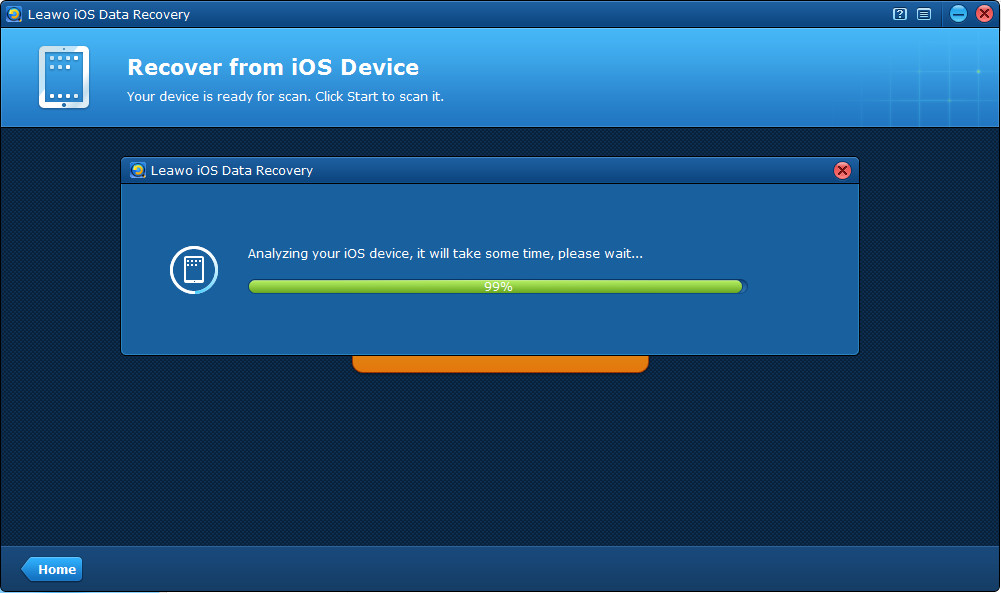
Connect your iPhone 5 to the PC and open Leawo iOS Data Recovery program, then you’ll see a Start button on the center of the program interface, just click it to start to scan your iPhone 5.

Start scanning your iPhone 

Step 2: Preview data found in the scanning
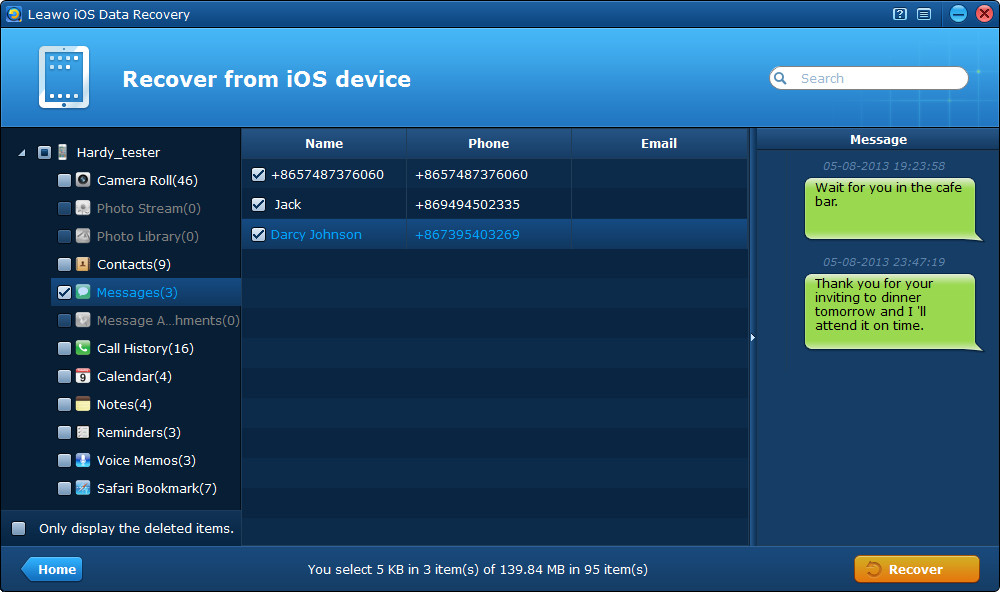
Once file scanning is finished, the lost files are found and are listed on the left side of the program. You’ll be endowed with the capability to preview all the files in different categories to find the exact files for recovery.

Preview iPhone SMS messages

Step 3: Recover and save iPhone 5 data
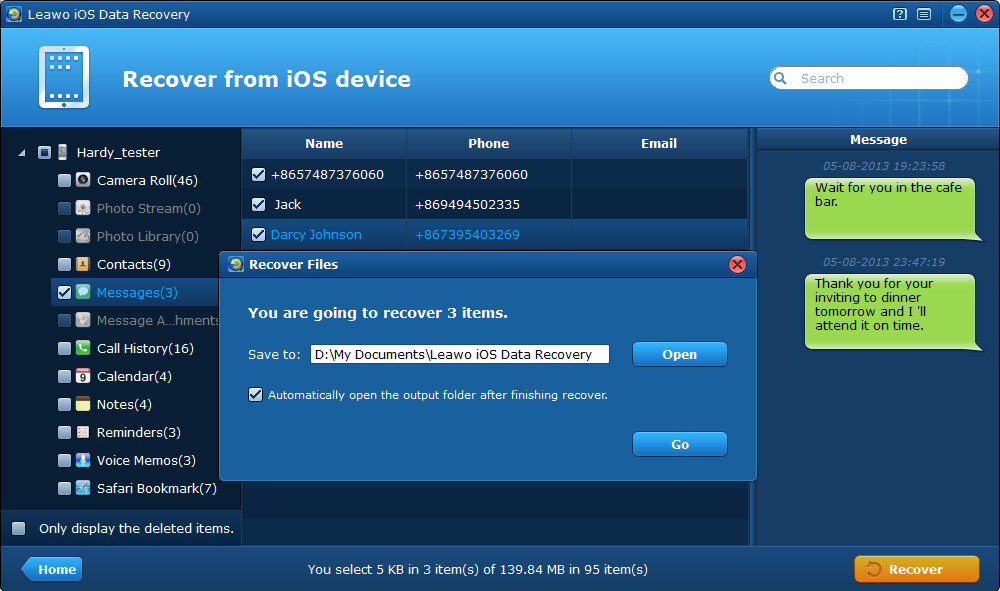
Select the files you want to recover then click "Recover" button. You need to select a path to save files and it is recommended to save the files on a familiar file location of your local computer instead of the default disk C. The program also facilitates fast opening of the recovered files by ticking “Automatically open the output folder after finishing recovery” checkbox.

Save SMS messages from iPhone 


Sunday, September 23, 2012

Top Tips for iPhone 5 and iOS 6: Google Map and Battery Life

Apple Map

The iPhone 5 is on your hand and iOS 6 has been updated for iPhone and iPad. Even though you love them, you have to admit that they also make some troubles to you, such as Apple Map, battery life. Thereby, we pick up some top tips to help you solve these problems.

Replacing Apple Map by Google Map on iOS 6

You may have complained the new Apple Map app so much, which has less, wrong information, and some terrible satellite photos. As we all know, the key point of map software is its richness and accuracy of data. To save your trouble, why not replacing the Apple Map by Google Map? Here is a useful video we pick from YouTube to tell you how to get Google Map back on iOS 6.


App: Tips & Tricks for iOS 6 and iPhone 5 - Video Walkthrough Secrets

This app, Tips & Tricks for iOS 6 and iPhone 5, is designed for both iPhone and iPad. You will get over 1000 unique iOS 6 tips and easy ways to master your iOS and iPhone 5. Most of the tips are step-to-step videos. We think it is worthy to own. Download it on iTunes.

App:tips for iPhone 5 and iOS 6


Extending the battery life of the iPhone 5

As Apple claims, iPhone 5 offers talk time of up to 8 hours on 3G and video playback of Up to 10 hours. But are you satisfied with it? No! So here we pick up some top tips to tell you how to extend battery life of iPhone 5.

1. Reduce screen brightness (browse to Settings > Brightness and adjust). There is also the option to set this on an automatic setting (browse to Settings > Brightness > Auto-Brightness On).

2. Turn off the functions and apps you don't use often.

Services like Wi-Fi and Bluetooth when not in use, turn off them and ensure Vibration Mode is turned off (browse to Settings > Sounds and set it to off).

Location Services (like Maps), when it is not in use, turn off (browse to Settings > Privacy > Location Services).

Turn Push Email function off, if not in use (browse to Settings > Mail, Contacts, Calendar > Fetch New Data and set Push Email to off).

3. Disable some default settings. Some apps use Push Notifications by default and this drains the battery. To disable, browse to Settings > Notifications and disable notifications for chosen apps.

4. Switch to Airplane Mode when low on battery or in an area with no network coverage (browse to Settings > Airplane Mode).

5. Keep iPhone away from direct sunlight and other heat sources.

 More tips for iPhone 5:

3 Ways to Play Flash SWF as HD Video on iPhone 5
iPhone 5 Tips - How to Transfer Videos and Music from iPhone 5 to Computer
Data Recovery Tips: How to Recover Deleted Files for iPhone 5

Wednesday, September 19, 2012

Microsoft Smiles Again-HTC Unveils Windows Phone 8X and 8S

HTC Windows Phone 8x

Different from other competitors, HTC holds its event after that of Apple. It debuts its first Windows Phone 8 lineup with the new Windows Phone 8X and 8S. Sharing the stage with Microsoft to detail its smartphones, they call the new phones “signature”. Regardless of the partnership with Nokia, Microsoft CEO Steve Ballmer is glad to see more phones running Windows Phone and says 8X truly a Windows Phone hero product.

HTC Windows Phone 8


The 8X, also known as Accord, is Powered by Qualcomm’s 1.5 GHz dual-core S4 processor, it features a 4.3-inch laminated super LCD 2 screen with HD 720p resolution (1280×720 pixels) and 16GB of storage. It supports NFC technology, similar to Nokia’s Lumia 920.

HTC Windows Phone 8X with Beats audio

Beats Audio is coming to Windows phones for the first time ever. That will be one of HTC’ advantages. Amplified by Beats Audio, users will get awesome listening pleasure with deeper bass, crisper vocals and detailed high notes. To compete in the photography space, the 8X has 8MP rear camera with f/2.0 aperture and HTC’s Image Chip technology and can capture 1080p video. Besides, it easily fit more people in the shot with an ultra-wide-angle front camera that captures nearly triple the area of most other front cameras.

Another smaller one, 8S, aims to the mid-range market. Powered by a slightly less powerful 1GHz dual-core Qualcomm S4 processor, the 8S  offers a 4-inch WVGA (800×480 pixels) super LCD display and 5MP camera with 720p video shooting.in addition, it owns only 4GB of storage with microSD expansion and Beats Audio technology lacking of built-in amplifiers.

HTC WP 8S


Both phones’ design is similar to Nokia’s Lumia, providing a simple, human feel combined with an innovative, unique unibody construction. Of course, unique color options and a screen to personalize are available.

All of HTC Windows Phone 8 phones will go on sale in November and U.S. carriers will include on AT&T, Verizon and T-Mobile.

Thursday, September 13, 2012

iPhone 5 VS Samsung Galaxy S3: Surviving Together!


The new iPhone 5 has come into rivalry in the smartphone Universe. Once again rumors win, and its announcement conforms much to the rumors. It’s certainly an improvement on the iPhone 4S and will be selling well, but it lacks the knockout, gasp-inducing features that Apple followers expect and other opponents fear. In a word, Samsung Galaxy S3 will still survive together with iPhone 5, and Apple leaves time and room for Nokia and Samsung for the future. Let's take a comparison between iPhone 5 and Samsung Galaxy S3.

iPhone 5 vs Samsung Galaxy S3


                          Size and screen
display of iPhone 5

iPhone 5 features a 4-inch screen with a resolution of 1136 x 640 pixels and the same 326 ppi Retina display as before. Any manufacturers can make larger phones, but keeping them thinner and lighter will be an issue! Apple has achieved it!

How about Galaxy S3? S3 uses a 4.8-inch Super AMOLED HD display with a 1280 x 720 pixel resolution and features a 302 PPI (Pixel Per Inch) density.

iPhone 5 is designed all in a beautiful aluminum body and made with an unprecedented level of precision. If you want a more compact (slim and pocketable) design, iPhone 5 meets your needs.

Most feelings from the screens of both flagships could be similar. Which one to choose maybe depend on consumers’ preference on size and     design.

CPU and related hardware

With the all-new A6 chip, as announced, iPhone 5 will offer speed of up to twice as fast compared with the A5 chip, whatever you do. And users can get faster graphics performance than before. But what is important is that it requires less power.

Samsung Galaxy S3 features the Exynos 4412 Quad SoC from Samsung, 1.4 quad-core A9 processor and a Mali 400MP GPU, for its international version. The U.S. version of the Samsung Galaxy S3 (an LTE capable version) is based on Qualcomm’s Snapdragon S4 SoC with a 1.5GHz dual-core Krait CPU and an Adreno 220 GPU.

S3 has been in the market for months. How fast it runs is fact for all. We still have to wait for and look forward to the amazing speed from iPhone 5 by the end of this month. But so far it is hard to say any “final” words.

OS

We should keep in mind that at the core of every iPhone and iPad is iOS. It includes all the built-in apps you use every day and all the intuitive technology — like Multi-Touch and Siri. And Apple says iOS 6 is the world’s most advanced mobile operating system. Indeed we can’t ignore and neglect the effects from every updates of iOS. Then Siri starts the voice-controlling trend and now it updates much.

The Samsung Galaxy S3 is currently officially using Android 4.0 Ice Cream Sandwich, and is expected to get Android 4.1 Jelly Bean at some point in October. Obviously the Android is absolutely great rival for iOS. It also offers millions of apps at Google Play. Any apps iTunes has will exist similarly in Android devices. Of course, S3 owns the feature of Smart Actions, too. The S Voice feature also helps users a lot and is unique enough.

Android 4.1 and Galaxy S3

Other improvements

Apple fans are glad to see that iPhone 5 has support for 4G LTE and dual-band Wi-Fi as expected. However the US version of Galaxy S3 has the same thing. What we can wait in hope is that the new A6 can assist iPhone 5 to beat S3 down.

In addition, iPhone 5 still offer users an 8-megapixel camera and 1080p HD video recording but with three microphones now, improved speakers and smaller dock connector. Comparing with Galaxy S3, these improvements of iPhone 5 seems pretty much normal. Another thing to mention is that the camera from Nokia Lumia 920 is more amazing. Besides, S3 supports NFC. Both phones can’t play Flash on themselves.

That’s all! All about iPhone 5 are improvements of iPhone 4S and are all out-innovated for Samsung!

In all, the "final verdict" is too early for this comparison. What we know is that they will survive together. Only if some day Apple could play DVD on iPhone, that would be great and end-all breakout! 

Related Posts Plugin for WordPress, Blogger...